Send to Kindle says your PDF is too large? Here's how to fix it
Send to Kindle by email takes 50 MB or less in total per email, while Send to Kindle for Web and the Kindle apps take files up to 200 MB. If your PDF is between 50 and 200 MB, skip email and upload it at amazon.com/sendtokindle. If it's over 200 MB, or you need to email it, shrink it, split it into parts, or convert it to an EPUB first. A text EPUB is usually much smaller than a scanned PDF, and it reads better too.
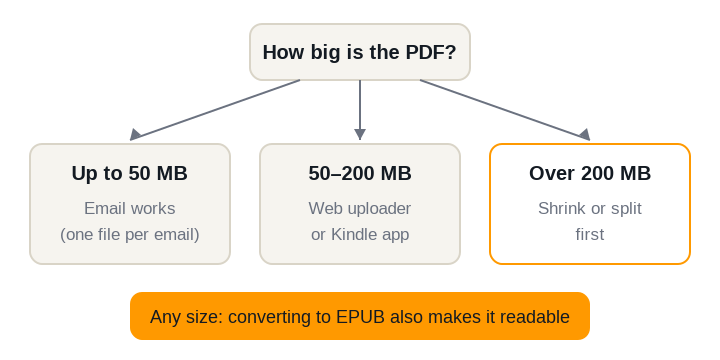
The exact size limits, route by route
Amazon's limits depend on how you send. Check your file's size first: on a Mac, select it in Finder and press Command-I; on Windows, right-click it and choose Properties.
| Route | Size limit | Other rules |
|---|---|---|
| Email to your @kindle.com address | 50 MB or less in total per email | Up to 25 attachments; sender must be on your approved list |
| Send to Kindle for Web | 200 MB per file | Sign in to Amazon; no approved list needed |
| Kindle app (iPhone, Android) and Send to Kindle for PC or Mac | 200 MB, Amazon's listed maximum for Send to Kindle | Sign in to Amazon |
| USB cable | No Send to Kindle check | Copies to one device only; on a Scribe, you can't write on a PDF loaded this way |
When an email is too big, Amazon sends back an error notice with code E007. Note the words "in total": three 20 MB PDFs in one email add up to 60 MB, so the whole email fails even though each file is fine on its own.
Fix 1: use the web uploader (files up to 200 MB)
This is the quickest fix for most "too large" emails. Nothing to install, and nothing to shrink.
- On a computer, go to amazon.com/sendtokindle and sign in with the Amazon account your Kindle is registered to.
- Drag the PDF onto the page, or choose it from your files.
- Pick the Kindle you want it on and keep Add to your library turned on.
- Click Send.
- On the Kindle, connect to Wi-Fi, swipe down from the top of the screen and tap Sync.
On a phone, share the PDF to the Kindle app instead. One catch: the file arrives as the same fixed page it was in print. A big scan will send fine, but you may still be zooming and panning to read it.
Fix 2: shrink the PDF
Shrinking makes sense when you need email (say, you're on a phone, or a work system emails files for you) or when the file is over 200 MB.
Why some PDFs are so big
A PDF made from a Word file or a website is mostly text, and text takes very little space. A scanned PDF is different: every page is a photo. A few hundred pages scanned in color at high resolution can easily run past 50 MB. That's also why compression helps scans the most. It lowers the quality of those page images.
On a Mac, with Preview
Apple's steps for compressing a PDF in Preview:
- Open the PDF in Preview.
- Choose File > Export.
- In the Quartz Filter pop-up menu, choose Reduce File Size.
- Give the file a new name so you keep the original, then click Save.
Apple warns that a compressed PDF may be lower quality than the original. Open the new file and zoom in on a page of small print. If the text has gone blurry, go back to the original and split it instead.
In Adobe Acrobat
- Open the PDF in Acrobat.
- Choose Save as Other > Reduced Size PDF. It's under the menu button on Windows and the File menu on a Mac.
- Confirm, pick a location and name, and click Save. Acrobat tells you how much smaller the file got.
Newer Acrobat versions also have a Compress a PDF tool under All tools. Menu names vary a little between versions.
Don't bother zipping
Amazon's email service opens ZIP files, but zipping a PDF rarely makes it much smaller. Most of what's inside a PDF, especially scanned page images, is already compressed.
Fix 3: split it into parts
Splitting keeps full quality, and each part goes by email on its own. It works well for a long document you read in chunks anyway, like a course reader or a manual.
In Preview on a Mac:
- Open the PDF and choose View > Thumbnails.
- Click the first page of the part you want, then Shift-click the last.
- Drag the selected thumbnails to the desktop. Preview makes a new PDF from just those pages.
- Repeat for each part, and name them in order ("Reader part 1", "Reader part 2").
Send each part in its own email, so no single email goes over 50 MB.
Fix 4: convert it to an EPUB
If the PDF is a document you want to read rather than a layout you want to keep, converting it solves two problems at once. An EPUB stores text, not pictures of pages, so it's usually far smaller than a scan. And the text reflows to fit the screen, so you choose the font size instead of zooming. Our guide to reading a PDF on Kindle without zooming explains why that matters on a 6 or 7 inch screen.
Free: Calibre
Calibre is a free desktop app that converts PDF to EPUB. It's the right choice for simple, single-column text PDFs. Its own manual says image-based documents aren't supported, so a scan with no text layer won't convert into readable text.
For scans and messy layouts: ReadOnKindle
ReadOnKindle converts your PDF into a Kindle book and emails it to your Kindle for you. It takes text PDFs and scanned PDFs up to 50 MB and 400 pages per book, so a file over 50 MB still needs shrinking or splitting first.
- Basic pulls the text out with code. It's always free, but page numbers and running headers can stay in, and it may not read a scan at all.
- Clean uses AI to remove page clutter, rejoin broken lines and build chapters with a contents page, without rewriting a word. For scans, the AI reads each page. It costs 1 credit a page, and every account gets 30 free credits a month.
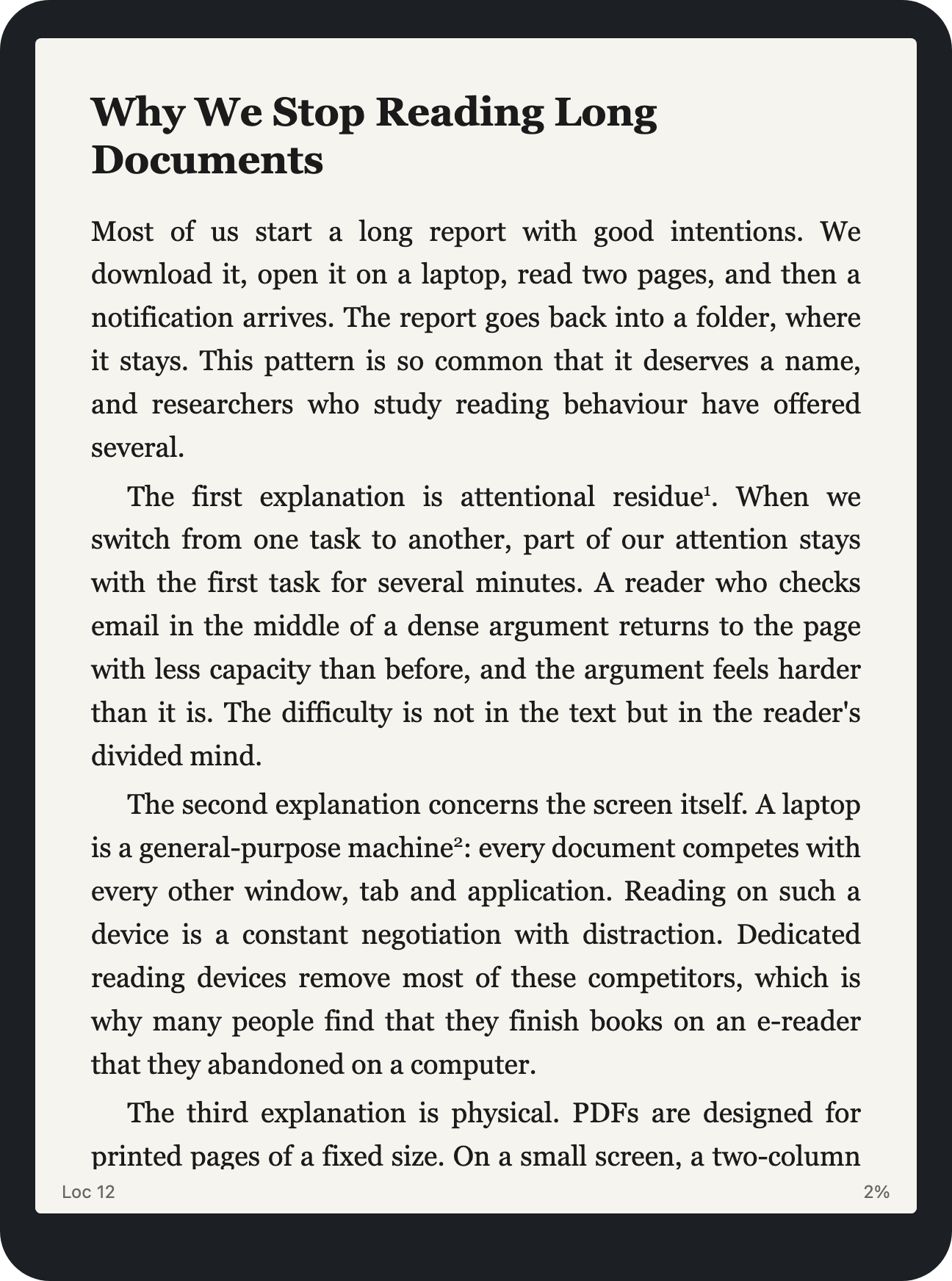
The one-line reason to pick it: a scan comes out as real, resizable text, which neither the web uploader nor Calibre gives you.
Which fix to choose
| Your situation | Best fix | Cost |
|---|---|---|
| 50–200 MB, and it reads fine as a page | Send to Kindle for Web | Free |
| Need email, small print still sharp after compressing | Shrink it | Free |
| Need email, quality matters | Split it | Free |
| Text PDF you want to read comfortably | Calibre or ReadOnKindle Basic | Free |
| Scanned or multi-column PDF you want to read | ReadOnKindle Clean | 1 credit a page |
A worked example: a 120 MB scanned course reader
Say your instructor posts a 180-page course reader, scanned in color, as a 120 MB PDF. You email it to your Kindle from your phone, and Amazon replies with E007: the email is over 50 MB.
- Web uploader. At 120 MB, it's under the 200 MB limit, so it goes through. But every page is a photo of a printed page, so on a Paperwhite you'll be zooming in to read.
- Shrink it. Preview's Reduce File Size may bring it under 50 MB, but how far it shrinks depends on the scan. Check the size, then check that small print is still readable.
- Split it. Three 60-page parts come out at roughly 40 MB each, and each one emails fine at full quality.
- Convert it. Upload the three parts to ReadOnKindle and choose Clean. The AI reads all 180 pages, so it uses 180 credits. The 30 free monthly credits cover a sixth of that. The monthly plan is sold in blocks of 100 pages at $2.25 a block, and a one-time 300-credit pack costs $7.73. See pricing for current details. What lands on your Kindle is text you can resize, split into chapters.
What to do when it still won't send
Still getting E007
Add up all the attachments in that email, not just the biggest one. Send one file per email, or switch to the web uploader.
The compressed file is still too big
Preview's filter is aggressive on some files and does little on others. Try Acrobat's Reduced Size PDF, or split the file instead.
It sent, but the pages are blurry
The compression went too far. Go back to the original and split it, or use the web uploader, which takes the full-quality file up to 200 MB.
No error and no document
A size problem isn't always the cause. Check that your sending address is on your Approved Personal Document E-mail List, that you used the right @kindle.com address, and that the Kindle has synced. Our checklist of fixes for Send to Kindle not working covers every error code.
Amazon says it can't process the file
Password-protected PDFs fail no matter their size. Remove the protection first, if you're allowed to.
FAQ
What is the maximum PDF size for Send to Kindle?
By email, 50 MB or less in total per email, with up to 25 attachments. Send to Kindle for Web and the Kindle apps take files up to 200 MB.
How do I send a PDF larger than 50 MB to my Kindle?
Upload it at amazon.com/sendtokindle or share it to the Kindle app, which both take up to 200 MB. If you need email, compress the PDF or split it into parts under 50 MB each.
Can I send a PDF over 200 MB?
Not through Send to Kindle. Split it into smaller PDFs, compress it, or copy it to the Kindle over a USB cable. A USB copy only goes to that one device.
Why is my scanned PDF so big?
Every page of a scan is a picture, and pictures take far more space than text. Color and high resolution make it bigger still. Compressing lowers image quality; converting to EPUB replaces the pictures with text.
Does converting a PDF to EPUB make it smaller?
Usually, yes, especially for scans, because the EPUB holds text instead of page images. It also reflows to fit your screen. See EPUB vs PDF on Kindle for the trade-offs.
Your next step
Check your file's size and pick the route that fits: email up to 50 MB, the web uploader up to 200 MB, shrink or split above that. If the PDF is a scan or a dense layout you actually want to read, turn it into a Kindle book you can resize. Basic is free, and Clean uses 1 credit a page.