How to read research papers on a Kindle Scribe
To read research papers on a Kindle Scribe, send the PDF with Amazon's Send to Kindle when you need to write on the equations and figures, and convert it to a reflowable Kindle book when you mainly need to read the prose. Two-column papers are where the choice matters: as a PDF, the type stays journal-sized; as a book, it becomes one column of text at the size you pick. For a paper you'll study closely, send both.
Why research papers are the hard case
Most PDFs are fine on a Scribe's big screen. Research papers bring four problems at once.
- Two columns of small type. The whole printed page is shrunk to fit the screen, so dense pages mean zooming and panning.
- Equations. They're laid out precisely on the page. Any conversion to reflowable text puts them at risk.
- Figures and tables. Plots need to stay big enough to read. Wide tables don't reflow well.
- Page clutter and references. Running headers, page numbers and "downloaded from" lines repeat on every page, and the reference list runs for pages at the end.
No single format handles all four well. That's why the useful question isn't "how do I send it" but "which version of this paper do I want on the device."
Keep the PDF, convert it, or send both
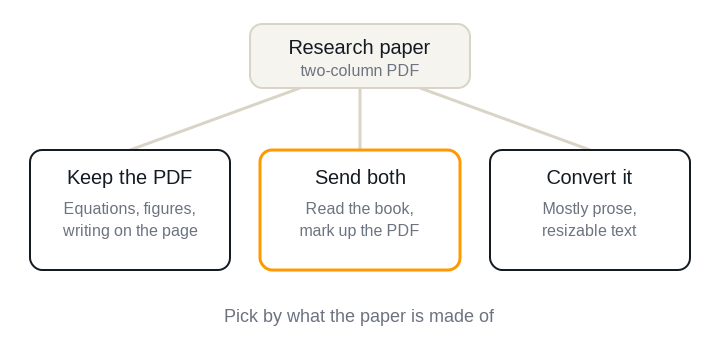
Keep the PDF when you'll write on the page
Amazon says PDFs sent with Send to Kindle support writing directly on the page on a Kindle Scribe. You can circle a term in an equation, sketch next to a figure, or scribble in the margin. That only works if the PDF goes through Send to Kindle: PDFs loaded through USB-C, or sent to your library before November 11, 2022, don't support writing on the page. Amazon lists this on its page about which personal document types support notes.
Pick the PDF for math-heavy theory papers, papers where the figures carry the argument, and anything you'll mark up for a reviewer.
Convert it when you mainly read the text
A converted EPUB flows into one column, and you choose the font and size. On a Scribe, Amazon says EPUBs sent with Send to Kindle support handwritten sticky notes, text notes, active canvas (a writing box you open between lines), highlights and underlines. You lose free-form writing anywhere on the page.
Pick the book for literature reviews, humanities and social science papers, review articles, and the long stack of background reading you need to get through.
Send both for papers you'll study
Read the converted book for comfort. Keep the PDF next to it for the equations, the figures as printed, and any page you want to mark up as it was laid out. Both sit in your library side by side.
| PDF via Send to Kindle | Converted Kindle book | |
|---|---|---|
| Two columns | Shrunk side by side | One column |
| Text size | Fixed | Yours to choose |
| Pen writing | Anywhere on the page | Sticky notes and active canvas |
| Equations | Exactly as printed | Check them against the PDF |
| Figures | As printed | Kept, but check small labels |
| Reference list | As printed | Flowing text at the end |
| Best for | Math, figures, markup | Prose-heavy papers |
How to send the PDF as-is
- Go to amazon.com/sendtokindle and sign in with the Amazon account your Scribe is registered to.
- Drag in the PDF. The web uploader takes files up to 200 MB.
- Choose your Scribe and keep Add to your library on, then click Send.
- On the Scribe, swipe down from the top of the screen and tap Sync.
You can also email the PDF to your Scribe's @kindle.com address from an approved sender. Our guide to sending a PDF to a Kindle Scribe covers every route.
If you have a Scribe released in 2025 or later, you can also import papers straight from Google Drive or Microsoft OneDrive: tap the connections icon in the main toolbar, pick the drive, find the file and tap Import. Amazon notes that your notes and highlights don't sync back to the drive, so upload a PDF copy if you want the annotated version there.
How to convert a paper into a Kindle book
The free routes
- Calibre is a free desktop app that converts PDF to EPUB. Its own manual says multi-column documents aren't supported, so with two-column papers expect to fix the reading order and remove headers by hand.
- ReadOnKindle's basic version is always free and runs in a browser. It pulls the text out with code, so page numbers and running headers can stay mixed into the text, and there's no contents page.
The clean route
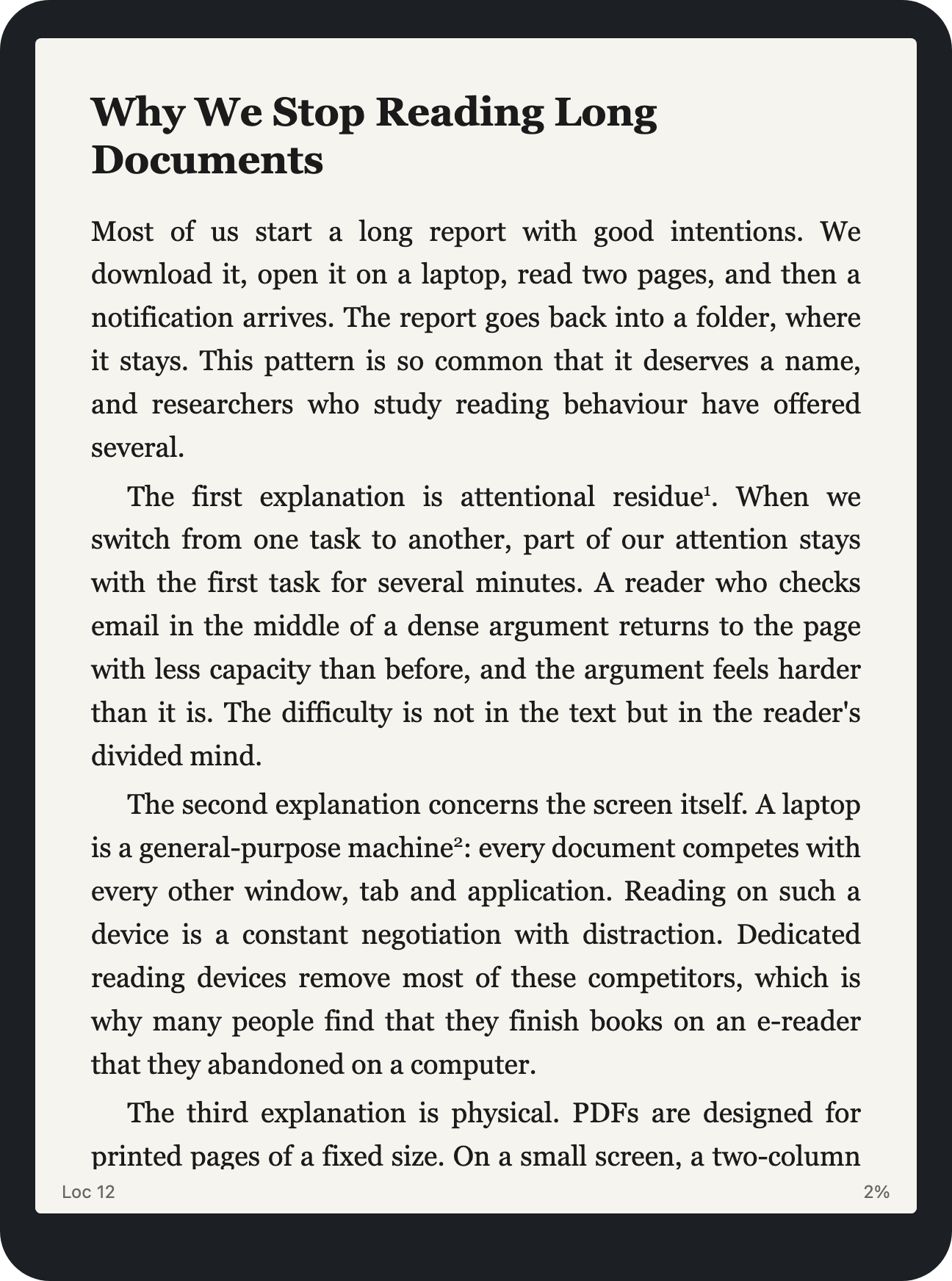
ReadOnKindle's clean version is built for the clutter papers have. AI removes page numbers and repeated headers, rejoins broken lines and hyphenated words, builds chapters and a contents page, and keeps the figures. It never rewrites the paper: every word stays as written. The one reason to use it over Calibre for a two-column paper: you get a readable book without an evening of cleanup, delivered to your Scribe by email.
- Sign in at ReadOnKindle with Google or an email link and upload the paper as a PDF. Files can be up to 50 MB and 400 pages.
- Choose basic (free) or clean (1 credit a page). Every account gets 30 free credits a month.
- For an out-of-field paper, turn on the optional footnotes, which explain hard words in 3–4 plain words, and the quick summary with talking points at the end. Both are included in the credit price.
- Add [email protected] to your Approved Personal Document E-mail List once, in Amazon's Manage Your Content and Devices > Preferences > Personal Document Settings. A test book confirms it works.
- The book arrives through Send to Kindle, so it gets the Scribe's note tools. Or download the EPUB and send it yourself.
Equations, figures and reference lists
Equations
Treat the PDF as the source of truth for math. A reflowable book can show an equation, but symbols, subscripts and alignment are exactly what a conversion can get wrong. If a section is mostly derivation, read that section in the PDF. If the paper has a few equations in a mostly-prose argument, the converted book is fine, with the PDF open for a quick check.
Figures and tables
The clean version keeps figures, but a plot shrunk to a column width can have labels too small to read. Wide tables are the hard case in any reflowable format. For figure-heavy papers, read the text in the book and look at the figures in the PDF, where they're as printed and you can write on them.
Reference lists
In the PDF, the references are just more two-column pages, easy to annotate. In a converted book, they become flowing text at the end, and since every word stays as written, nothing is dropped. To jump there, use the contents page that the clean version builds from the paper's headings. With the basic version there's no contents page, so you'll scroll.
Worked example: a 14-page conference paper
Say you have a 14-page, two-column conference paper as a 3 MB PDF: two pages of equations in the methods, four figures, and three pages of references.
- As a PDF: it's well under the 200 MB web limit. Each page fills the screen in two columns. You can circle a variable in the loss function and write "why this prior?" beside it. The body text is small, so the prose sections take zooming.
- As a clean book: 14 pages means 14 credits, inside the free 30 for the month. The headers and page numbers are gone, the columns become one, and the figures are in place. You read the introduction and discussion at your own font size, with footnotes on unfamiliar terms.
- Both: read the book on the train, then open the PDF to check the methods' equations and mark them up before your reading group.
What to do when it doesn't work
The pen won't write on the PDF
It was copied over USB-C, or it was sent before November 11, 2022. Delete it and send it again with Send to Kindle.
The columns come out mixed together
A plain text extractor read across both columns. Calibre's manual says multi-column documents aren't supported. Try the clean version, or keep that paper as a PDF.
The journal name and page numbers are in the middle of sentences
That's what plain extraction does, and it's what the basic version leaves in. Use the clean version, or remove them by hand in Calibre's Search and replace.
An equation looks wrong in the book
Don't trust the converted version for math. Check it against the PDF and do the close reading there.
The book never arrives
Check that [email protected] is on your approved list, spelled exactly right. Then connect the Scribe to Wi-Fi and sync. If it's still missing, work through our fixes for Send to Kindle not working.
FAQ
Is the Kindle Scribe good for reading research papers?
Yes, with the right format per paper. The large screen shows a whole PDF page, and you can write on it with the pen. For long prose papers, a converted book is more comfortable because the text resizes.
Can I annotate research papers on a Kindle Scribe?
Yes. Send the PDF with Send to Kindle and you can write directly on the page. In a converted EPUB you annotate with handwritten sticky notes, active canvas, highlights and text notes instead.
How do I read two-column PDFs on a Kindle Scribe?
Either zoom and pan around the PDF or convert the paper into a reflowable book so the columns become one. Our guide to converting a PDF to EPUB without losing formatting explains why columns break and what a good conversion keeps.
Can I send papers from Google Drive to my Scribe?
On a Scribe released in 2025 or later, yes: import from Google Drive or Microsoft OneDrive through the connections icon. Notes you add on the Scribe don't sync back to the drive.
Your next step
Send the math-heavy papers as PDFs so you can write on them. For the rest of your reading list, upload a paper and turn it into a Kindle book. The basic version is free, and the first 30 clean pages each month are too.