Convert a PDF to EPUB without losing formatting
You can't keep a PDF's page layout in a normal EPUB, because reflowing the text is the whole point of EPUB. What you can keep is everything that matters while you read: the reading order, the headings, whole paragraphs, the figures and the footnotes, with no page numbers or running headers dropped into the middle of a sentence. So either pick a converter that rebuilds that structure, or, if the printed page really is the content, export a fixed-layout EPUB instead.
"Losing formatting" means two different things
Most converter roundups blur these together, which is why their advice doesn't work.
Page layout is where every line, column and image sat on the printed page. A PDF stores exactly that: text at fixed coordinates on a fixed page size. No reflowable format can keep it, by design.
Document structure is what the page layout was trying to show you: this is a title, this is body text, this paragraph continues from the last one, this is a figure with its caption, this is a footnote. That is what a good conversion keeps, and what a bad one destroys.
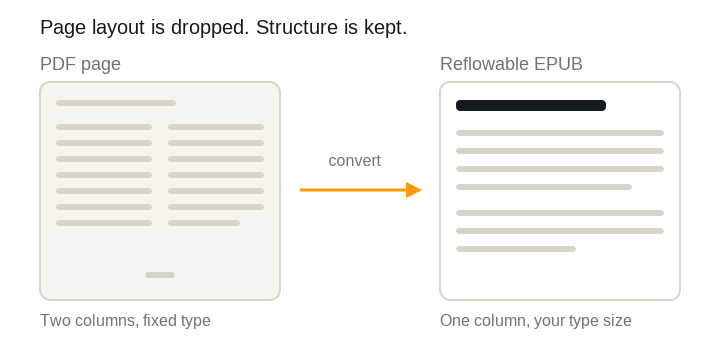
When people say a conversion "lost the formatting," they almost always mean the structure broke: sentences cut in half, columns interleaved, a page number sitting mid-paragraph. That part is fixable.
Why columns, tables and headers break
A PDF has coordinates, not a reading order
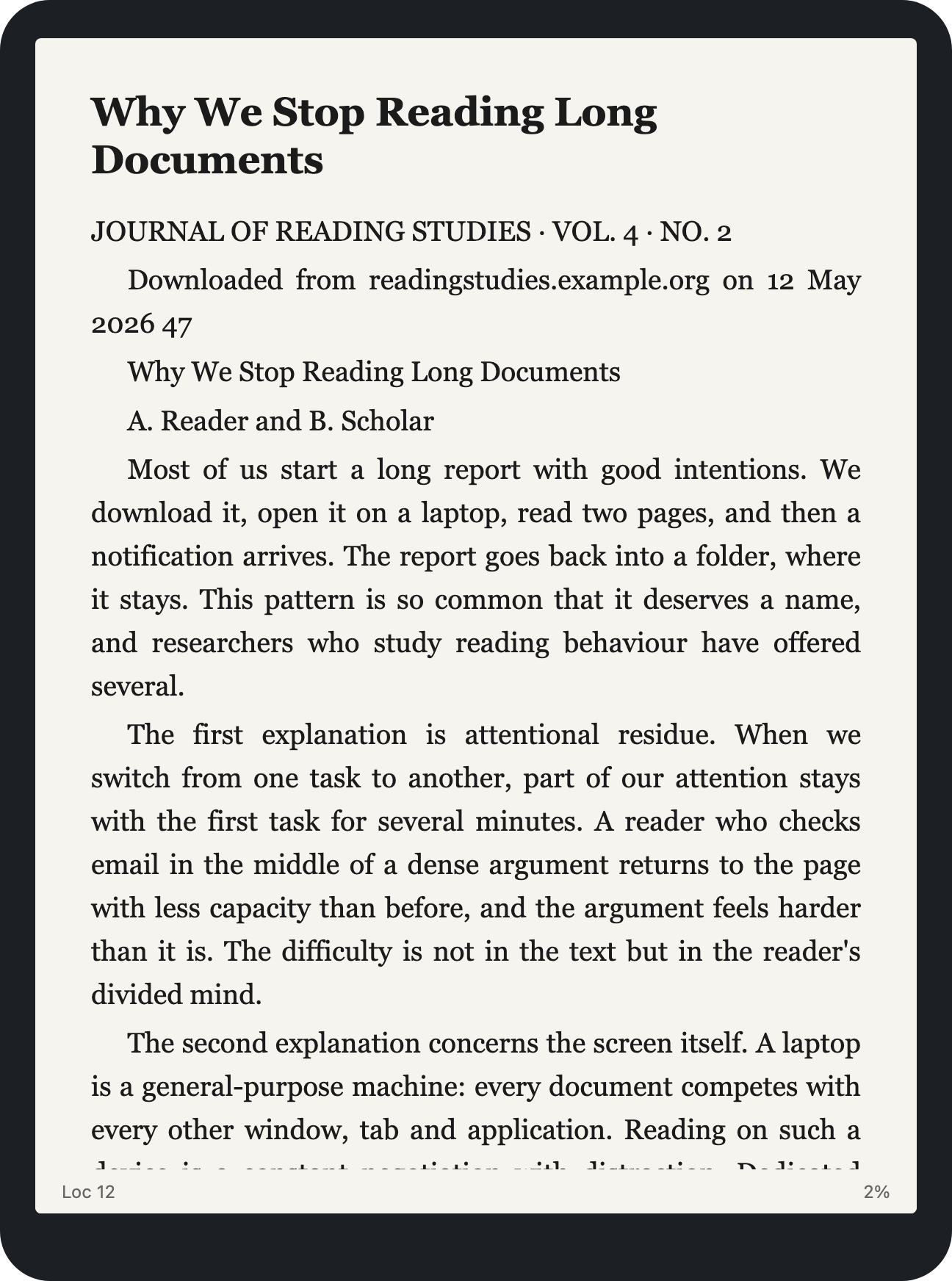
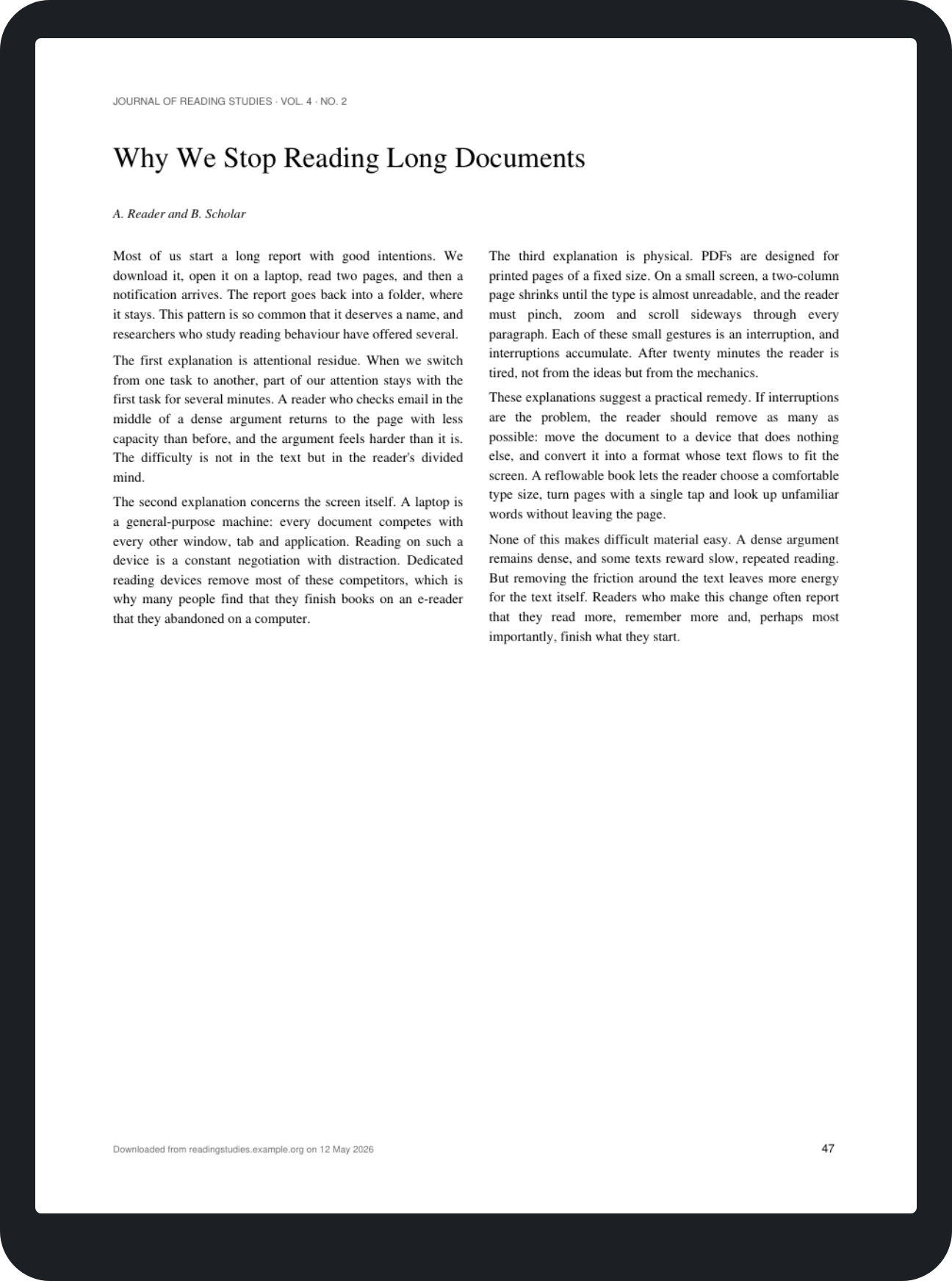
A PDF says "draw this word here." It usually doesn't say which column comes first. A converter has to guess the reading order from positions, and on a two-column page the simple guess — read each line all the way across — interleaves the left and right columns into one garbled stream.
Running headers and page numbers become body text
The journal name at the top of every page and the number at the bottom are just more text at more coordinates. Extract the text and they land in the flow. The calibre manual is blunt about the knock-on effect: if headers and footers aren't removed, they "throw off the paragraph unwrapping," so the paragraphs around them break too.
Lines end where the page ended, not where the sentence ended
Every line in a PDF is its own line. To rebuild a paragraph, the converter has to decide which line breaks were real and which were just the edge of the paper, and rejoin hyphenated words split across lines. Guess wrong and you get either one long run-on or a column of short, stubby lines.
Tables are lines on a page, not tables
A PDF table is usually drawn rules plus loose text in cell positions. There is no table object to carry over. Calibre's own manual states that extraction of tables and vector images from a PDF "is also not supported," which is why a results table so often arrives as a wall of numbers.
Scanned pages have no text at all
If the PDF is a photocopy or a photo, there's nothing to extract. It needs OCR first — a converter without OCR will hand you an EPUB of page images, or an empty one.
Fixed-layout EPUB: the honest trade-off
Several guides recommend "choose fixed layout" as the way to convert without losing formatting. That is true and it is also a trap: a fixed-layout EPUB keeps the page, so on a small e-reader it has exactly the same problem as the PDF did.
| Fixed-layout EPUB | Reflowable EPUB | ||
|---|---|---|---|
| Page layout | Kept exactly | Kept exactly | Dropped |
| Text size | Fixed | Fixed | Yours to choose |
| Two-column pages | Pinch and pan | Pinch and pan | One clean column |
| Contents page | Rarely | Rarely | Built from headings |
| Best for | Printing, archiving | Comics, children's books, sheet music | Anything mostly text |
If you're reading on a 6-inch Kindle, fixed layout is the wrong answer for anything but diagrams and comics. Our EPUB vs PDF on a Kindle guide covers where each one wins.
Three ways to do it
Calibre: free, and worth the fiddling for one big file
Calibre is free, offline, and the right tool if you want full control. The manual says it plainly: "PDF is a really, really bad format to use as input," and "complex, multi-column, and image based documents are not supported." Within those limits:
- Open calibre and click Add books, then pick your PDF.
- Select it in the list and click Convert books. Set the output format, top right, to EPUB.
- Open the PDF input panel. Line un-wrapping factor controls where lines get rejoined; it starts at 0.45. Change it in small steps if paragraphs come out run together or still broken.
- Open Search and replace and add a rule that deletes the running header and the page number. Do this first — leftover headers wreck the paragraph rebuilding.
- Open Heuristic processing and tick Enable heuristic processing if the output is badly formatted. Results vary by document, so test it both ways.
- Open Structure detection and Table of contents to turn the headings into chapters.
- Click OK. Then select the EPUB and use Edit book to fix what's left by hand.
Budget half an hour the first time, and expect manual cleanup on tables.
Amazon's Send to Kindle: free delivery, not a converter
Send to Kindle accepts both EPUB and PDF, so once you have a good EPUB this is the free way to get it onto your device: email it to your Kindle email address from an approved address, or use the Send to Kindle app. It won't rebuild a broken layout for you, though. Sending the raw PDF gives you the fixed page, small type and all.
ReadOnKindle: one step, convert and send
ReadOnKindle converts a PDF to EPUB in one pass, in a browser, and either emails the book to your Kindle or hands you the EPUB file. The clean version uses AI to do exactly the jobs that break above: strip page numbers and repeated headers, rejoin broken lines and hyphenated words, build chapters and a contents page, keep the figures. Your text is never rewritten — every word stays as written.
The one concrete reason to pick it over Calibre: it fixes the headers and the broken lines for you and sends the finished book to your Kindle, instead of leaving you in a settings dialog.
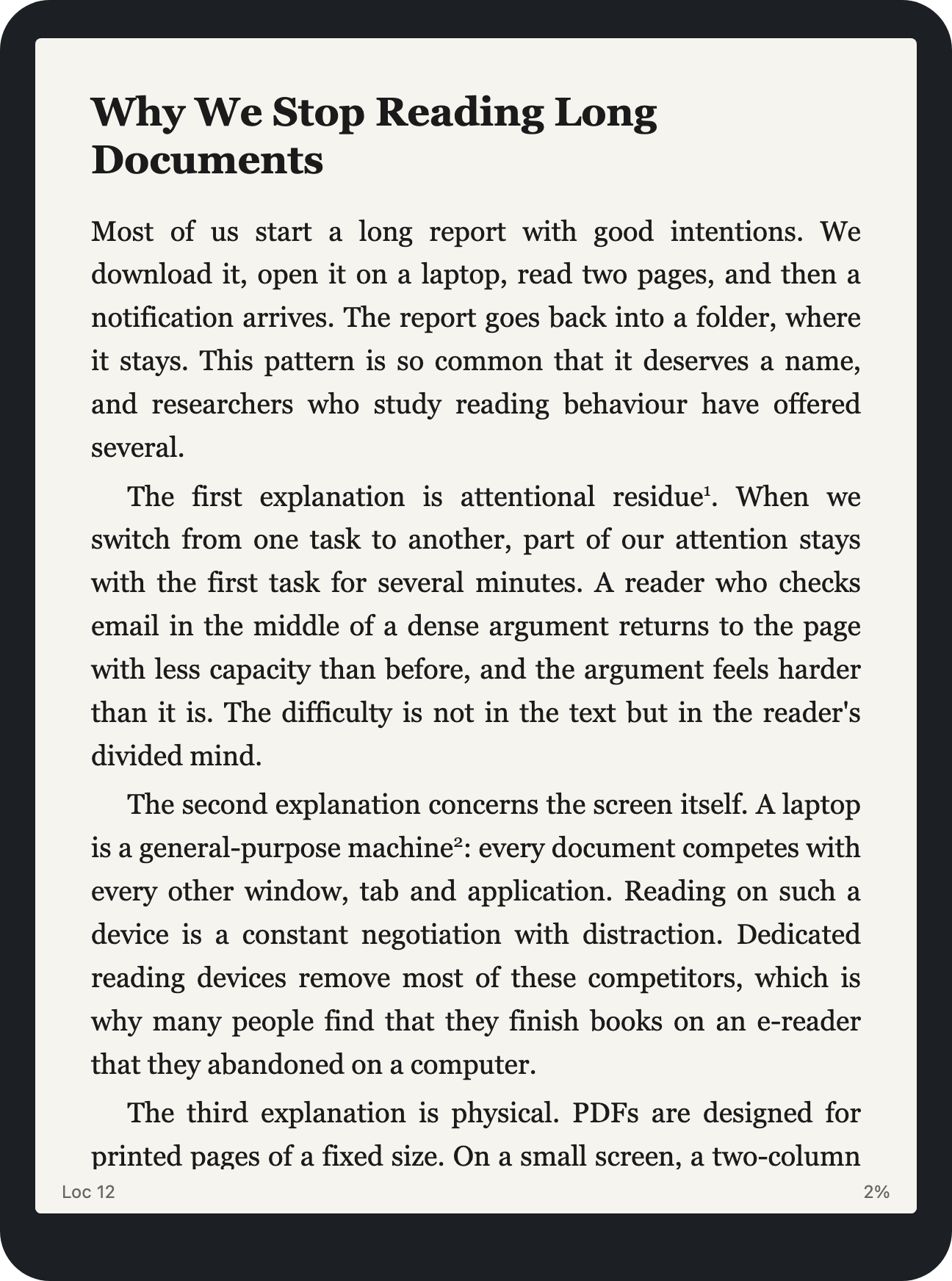
The basic version is always free but does no cleanup, which is what the earlier screenshot shows. Clean costs 1 credit a page, and every account gets 30 clean pages a month free. Paid credit packs are opening soon.
Worked example: a 28-page journal article
Say you have a 4 MB PDF of a journal article: two columns, the journal name and a download line across the top of every page, a results table on page 9, footnotes at the bottom of each page.
- Sent to the Kindle as a PDF: it opens and it's unreadable without zooming. Landscape helps a little.
- Through a plain text-extraction converter: resizable text at last, but the journal name and page number appear 28 times inside the text, and sentences break at the old column edges.
- Through a clean conversion: one column in your font size, the repeated header and page numbers gone, paragraphs whole, figures in place, a contents page from the headings. At 28 pages that's 28 credits, inside the free monthly 30.
- The table on page 9: check it. In any reflowable format a wide table is the hard case. If the whole document is tables, keep the PDF and read it on a tablet or a Kindle Scribe.
When it doesn't work
- Columns interleaved, every other line from the wrong column. The converter read straight across. Use one that detects columns, or crop the PDF into single columns first.
- Gibberish instead of letters. The PDF embeds non-Unicode fonts, so the characters have no real text behind them. Calibre's manual flags this. The fix is OCR: run the pages through a converter that reads scans.
- Empty EPUB, or just page images. It's a scanned PDF with no text layer. You need OCR, not a text extractor.
- Headers and page numbers still in the text. On Calibre, add a Search and replace rule. On ReadOnKindle, make sure you're using the clean version, not basic.
- Sentences cut in half. The line-rejoining guess went wrong. Adjust Line un-wrapping factor, or use a converter that rejoins lines by meaning.
- The file is rejected. ReadOnKindle takes files up to 50 MB and books up to 400 pages. Split a bigger scan into parts and send them as two books.
- The EPUB never arrives on your Kindle. Amazon only accepts documents from addresses on your Approved Personal Document E-mail List. Add the sending address once, in Amazon's Personal Document Settings.
FAQ
Can you convert a PDF to EPUB with no formatting loss at all?
Not into a reflowable EPUB. Fixed coordinates can't survive reflowing text, and that's the trade you're making on purpose. The realistic goal is zero loss of content and structure: all the words, in the right order, with headings, figures and footnotes intact.
Does Calibre keep formatting when converting a PDF?
For a simple, single-column, text-based PDF, usually yes. For multi-column papers, tables and image-heavy pages, the manual says those aren't supported, and the output needs hand cleanup in Edit book. It's free and offline, so it's still a good first try for a one-off file.
Will a Kindle open an EPUB file?
Yes. Send to Kindle accepts EPUB, and the book arrives in your Kindle library with the text resizable like any other book. Amazon stopped accepting MOBI and AZW for email delivery in 2022, so EPUB is the format to use now.
My tables turned into a wall of numbers. Can I fix that?
Sometimes. A PDF table is drawn lines plus loose text, with no table structure to carry across. If one or two tables matter, screenshot those pages and keep them as images alongside the EPUB. If the document is mostly tables, read it as a PDF on a larger screen — see reading a PDF on a Kindle without zooming for the in-between options.
Is it safe to use an online converter for a private document?
Check the retention policy before you upload anything confidential. ReadOnKindle deletes uploaded files and finished books automatically within 3 hours, and doesn't sell files or use them to train AI models. If you'd rather nothing leaves your computer, use Calibre.
Pick your route by document: Calibre for one simple file you don't mind fiddling with, fixed layout for comics and diagrams, and a clean reflowable conversion for everything that's mostly text. If that's what you have, drop your PDF into the converter and read the result on your Kindle tonight — the first 30 pages a month are free.