How to send a PDF to a Kindle Scribe (and still write on it)
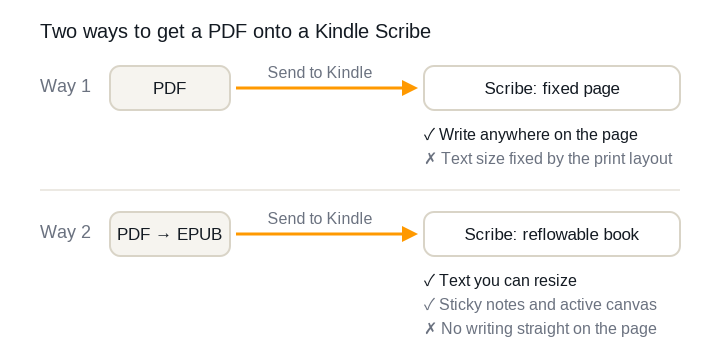
To send a PDF to a Kindle Scribe and write on it with the pen, upload it with Amazon's Send to Kindle (the website, the desktop app, the Kindle phone app or email), not a USB cable. That keeps the printed page and lets you write anywhere on it. If the text is too small to read comfortably, convert the PDF into a reflowable Kindle book first: you get text you can resize and you still take pen notes, in sticky notes and an active canvas instead of on the page itself.
The two ways, and what each one gives you
A PDF is a fixed page. On a Scribe, that's both its strength and its problem.
Way 1: send the PDF as it is
Amazon says PDFs are fixed-layout documents that "support writing directly on the page with Kindle Scribe." You can underline, circle and scribble in the margins as if the page were paper. The catch: the type stays the size it was printed. The Scribe's screen is much bigger than a Paperwhite's, so many PDFs are readable, but two-column papers and small-print reports still mean squinting or zooming.
Way 2: convert it to a Kindle book first
Turn the PDF into an EPUB, then send that. The text now flows to fit the screen, so you pick the font and size. Amazon treats it as an adjustable-layout document, which supports pen notes through active canvas (a writing box you open between lines of text) and handwritten sticky notes. What you lose is free-form writing anywhere on the page.
Quick comparison
| PDF as-is | Converted to EPUB | |
|---|---|---|
| Write anywhere on the page | Yes | No |
| Pen notes | On the page | Sticky notes and active canvas |
| Text size | Fixed | Yours to choose |
| Two-column layouts | Shrunk, side by side | One clean column |
| Keeps exact layout | Yes | No, text reflows |
| Best for | Forms, diagrams, sheet music, drafts to mark up | Articles, reports, book chapters, course readings |
For a longer look at the trade-off, see EPUB vs PDF on a Kindle.
Way 1: send a PDF to your Scribe with Send to Kindle
Any Send to Kindle route works for pen writing. Pick the one closest to where your file is.
From a computer browser
- Go to amazon.com/sendtokindle and sign in with the Amazon account your Scribe is registered to.
- Drag the PDF onto the page, or choose it from your files. The web uploader takes files up to 200 MB.
- Choose your Scribe as the device and keep Add to your library turned on.
- Click Send.
- On the Scribe, connect to Wi-Fi, swipe down from the top of the screen and tap Sync. The PDF shows up in your library.
By email
- Find your Scribe's address: on Amazon, open Manage Your Content and Devices > Preferences > Personal Document Settings, or on the Scribe go to Settings > Your Account. It ends in @kindle.com. Our guide on finding your Kindle email address walks through it.
- Make sure the address you send from is on the Approved Personal Document E-mail List on that same page.
- Attach the PDF and send. Keep the email under 50 MB in total.
From your phone or desktop app
The free Kindle app for iPhone and Android and the Send to Kindle app for Mac and Windows both send files to your library. On a phone, share the PDF to the Kindle app. On a computer, drag the file into the Send to Kindle app and pick your Scribe.
What not to do
Don't copy the PDF over with a USB cable if you want to write on it. Amazon says handwriting isn't supported in PDFs loaded through USB-C. The file opens, but the pen can't write on the page.
Way 2: convert the PDF into a reflowable Kindle book
This is the better route when the PDF is mostly text and you want to actually read it, not mark up a layout.
Free options
- Calibre is a free desktop app that converts PDF to EPUB. It's a good fit for simple, single-column text. With columns, running headers and page numbers, expect some cleanup by hand.
- ReadOnKindle's basic version is free and needs no software, just a browser and a free account. Like Calibre, it pulls the text out with code, so page numbers and headers can stay in.
The clean option
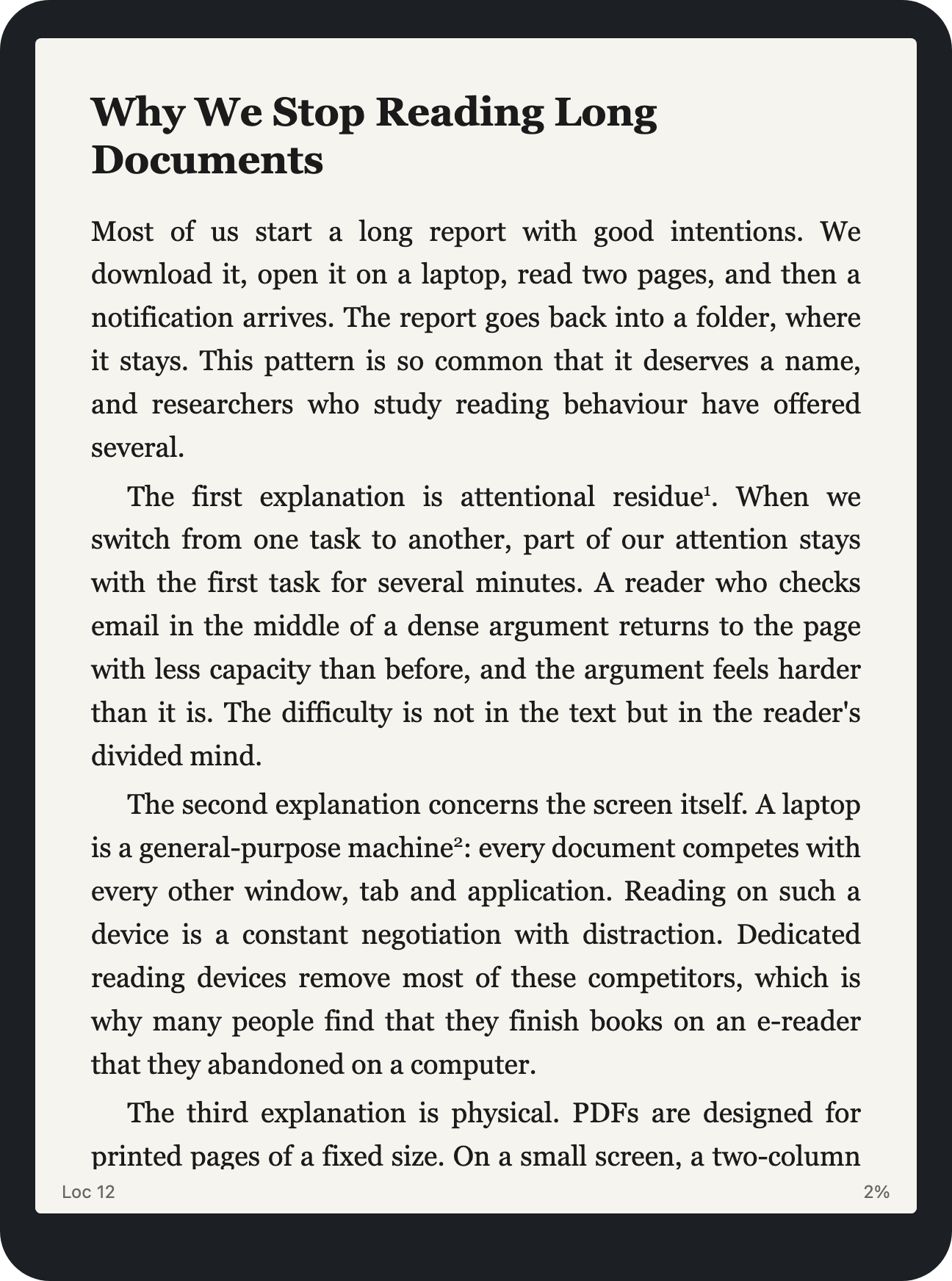
ReadOnKindle's clean version uses AI to remove page numbers and repeated headers, rejoin broken lines and hyphenated words, and build chapters with a contents page, while keeping the figures. It never rewrites your text: every word stays as written. It costs 1 credit a page, and every account gets 30 free credits each month. If your PDF has two columns or lots of page clutter, this is where converting the PDF to a Kindle book with ReadOnKindle saves you the cleanup work.
Getting the converted book onto the Scribe
- Upload your PDF (up to 50 MB and 400 pages) and choose basic or clean.
- Add [email protected] to your Approved Personal Document E-mail List once. It takes about a minute, and a test book confirms it works.
- The finished book is emailed to your Kindle through Send to Kindle, so it arrives with the Scribe's note tools. You can also download the EPUB and send it yourself with any of the Way 1 methods.
A worked example: a 24-page journal article
Say you have a 24-page, two-column journal article as a 3 MB PDF, and you need to read it and take notes for a seminar.
Sent as-is. It's well under every size limit, so any Send to Kindle route works. Each printed page fills the screen, two columns side by side. You can circle a key sentence and scribble "check this" in the margin right on the page. But the type is the size of the print journal shrunk to fit, so on dense pages you end up zooming in and panning around.
Converted first. With the clean version, it costs 24 credits, which fits inside the 30 free credits for the month. The running header and page numbers are gone, the columns become one stream of text, and you set the font size. To take a note, you open an active canvas between paragraphs or add a sticky note to a highlighted sentence.
Or both. Nothing stops you from sending both versions: read the converted book, and keep the original PDF on the Scribe for the figures and anything you want to mark up as it was printed.
What to do when it doesn't work
The pen won't write on my PDF
- It came over USB. Delete it and send it again with Send to Kindle.
- It was sent before November 11, 2022. Amazon says older documents don't support the newer writing features. Send it again.
- It was sent later but still won't take ink. Open the document's action menu in your library, choose Remove download, then Download again. If neither option appears, send it again.
The email never arrived
Check the sender is on your approved list, spelled exactly right. Keep the email under 50 MB in total; for bigger files, use the web uploader, which takes up to 200 MB. Then connect the Scribe to Wi-Fi and sync.
Send to Kindle says it can't convert the file
Password-protected PDFs and PDFs with security settings fail. Remove the protection first, if you're allowed to. Amazon also lists the languages it supports, and a document in a language outside that list can fail.
My converted book has no pen notes in some places
Amazon says handwritten notes aren't supported in documents containing tables, audio or video, SVG images, math equations, or footnotes inside footnotes. If your converted book has these, you can still read it, but you may need sticky notes elsewhere or the PDF version for those pages. Amazon keeps the full list on its page about which personal document types support notes.
FAQ
Can I write on a PDF on Kindle Scribe?
Yes, if you send it with Send to Kindle. Amazon says Scribe supports writing directly on the page in PDFs sent that way. PDFs copied over USB-C don't support handwriting.
Why is the PDF text so small on my Scribe?
A PDF keeps the exact printed page, so the whole page is shrunk to fit the screen and you can't change the font size. Turning the Scribe sideways helps a bit. For a real fix, convert the PDF to EPUB so the text reflows. Our guide to reading a PDF on Kindle without zooming covers the options.
What's the file size limit for sending a PDF to a Scribe?
Amazon's Send to Kindle for Web takes files up to 200 MB. Email has a 50 MB limit per message. For larger PDFs, use the web uploader, or split the file.
Can I take handwritten notes in a converted Kindle book?
Yes. Converted EPUBs are adjustable-layout documents, and on a Scribe they support handwritten sticky notes and active canvas. You just can't write freely anywhere on the page the way you can on a PDF.
Does Send to Kindle work for PDFs on every Scribe?
Send to Kindle works with every Scribe registered to your Amazon account. Each one has its own @kindle.com address, and the web uploader and apps let you pick which device gets the file. Amazon's Send to Kindle help page lists every route.
Your next step
If you want to mark up the page as printed, send the PDF as-is with Send to Kindle. If you want to read it comfortably and still take pen notes, upload your PDF and turn it into a Kindle book. Basic is free, and the clean version uses 1 credit a page.