Send to Kindle not working? A symptom-by-symptom fix list
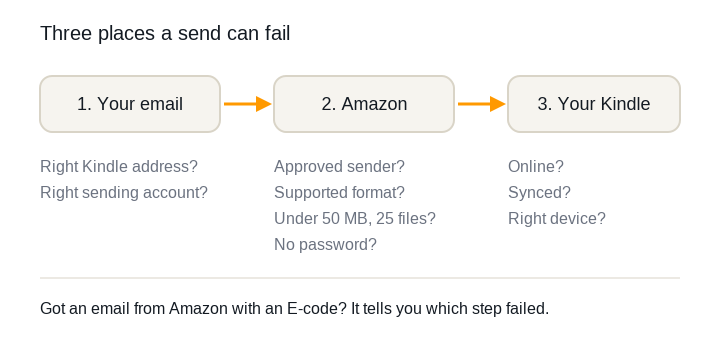
When Send to Kindle isn't working, the cause is almost always one of eight things: the sending address isn't on your Approved Personal Document E-mail List, the email went to the wrong @kindle.com address, the file is too big, the format isn't supported, the Kindle hasn't synced, the file arrived but won't reflow, Amazon's service is briefly down, or you've hit the personal-use limits. Check two inboxes, plus spam: the one you sent from and the email on your Amazon account. Amazon's error notice usually names the exact problem.
Start here: find Amazon's error email
Most failures aren't silent. Amazon sends a short notice with an error code. Search both inboxes, and both spam folders, for it. The common codes, from Amazon's Troubleshoot Send to Kindle Errors page:
| Code | What went wrong | Fix |
|---|---|---|
| E001–E003 | Unsupported, corrupted or invalid file | Use a supported format; confirm it opens on your computer |
| E004, E005 | Password-protected or encrypted file | Remove the protection, then resend |
| E006 | More than 25 attachments | Split across several emails |
| E007 | An attachment is 50 MB or more | Compress, split, or use the web uploader |
| E009 | No attachment found | Attach the file and resend |
| E014 | Sender not on your approved list | Add the address, then resend |
| E999 | Internal error or maintenance | Wait 15–30 minutes, then resend |
No email at all? Work through the checklist below.
The checklist: each symptom and its fix
1. Sender isn't approved
Amazon only accepts emailed documents from addresses on your approved list. It's the most common cause, especially when your phone sends from a different account than you think.
- Sign in to Amazon and open Manage Your Content and Devices.
- Go to Preferences > Personal Document Settings.
- Under Approved Personal Document E-mail List, choose Add a new approved e-mail address.
- Type the exact address in the From line of your email, and save.
- Send the document again. Amazon doesn't retry an email it rejected.
Amazon sends the E014 notice only once per unapproved sender, so later sends from that address just vanish.
2. Wrong Kindle address
Every Kindle and every Kindle app has its own address ending in @kindle.com. With several devices, it's easy to send to the wrong one.
- In Personal Document Settings, look under Send-to-Kindle E-Mail Settings. Every device is listed with its address.
- Copy the address for the device you're holding. On the Kindle itself you'll find it under Settings > Your Account.
- Paste it rather than typing it.
Our guide to finding your Kindle email address walks through every route, on Amazon and on the device.
3. File too big or too many files
Email has hard limits: each attachment must be under 50 MB (measured before zipping), with no more than 25 attachments per email. For a bigger file, skip email and use Send to Kindle for Web at amazon.com/sendtokindle, which takes files up to 200 MB.
4. Format isn't supported
Amazon accepts EPUB, PDF, DOC and DOCX, TXT, RTF, HTM and HTML, and JPEG, GIF, PNG and BMP images. It stopped accepting MOBI and AZW files by email in 2022, so an old .mobi file will fail. Other common traps:
- Password-protected PDFs. Open the file, choose File > Save As and turn off the security settings, if you're allowed to.
- Old Word files. Amazon wants a file from Word 97 or newer, saved as .doc or .docx.
- Files that don't open. If your computer can't open it, Amazon can't either. Re-export it from the original app.
5. It was sent but never shows up
The email was accepted, but the Kindle is empty. This is a sync problem, not a sending one.
- Turn on Wi-Fi on the Kindle and turn off Airplane Mode.
- Swipe down from the top of the screen and tap Sync.
- Look in your library, and clear any filter that might be hiding documents.
- Still nothing after a few minutes? Restart the Kindle and sync again.
Amazon keeps trying to deliver for up to 60 days, so a Kindle that's been offline will still get the document once it connects.
6. It arrived, but you can't read it
The send worked, but the document is a shrunken page you have to zoom and pan. That's normal for a PDF: it keeps its printed layout, so a two-column page is squeezed onto a 6 or 7 inch screen. Amazon's own conversion can also deliver a file without text reflow (codes E013 and E016), often because of large tables, multimedia, math equations or linear-gradient images.
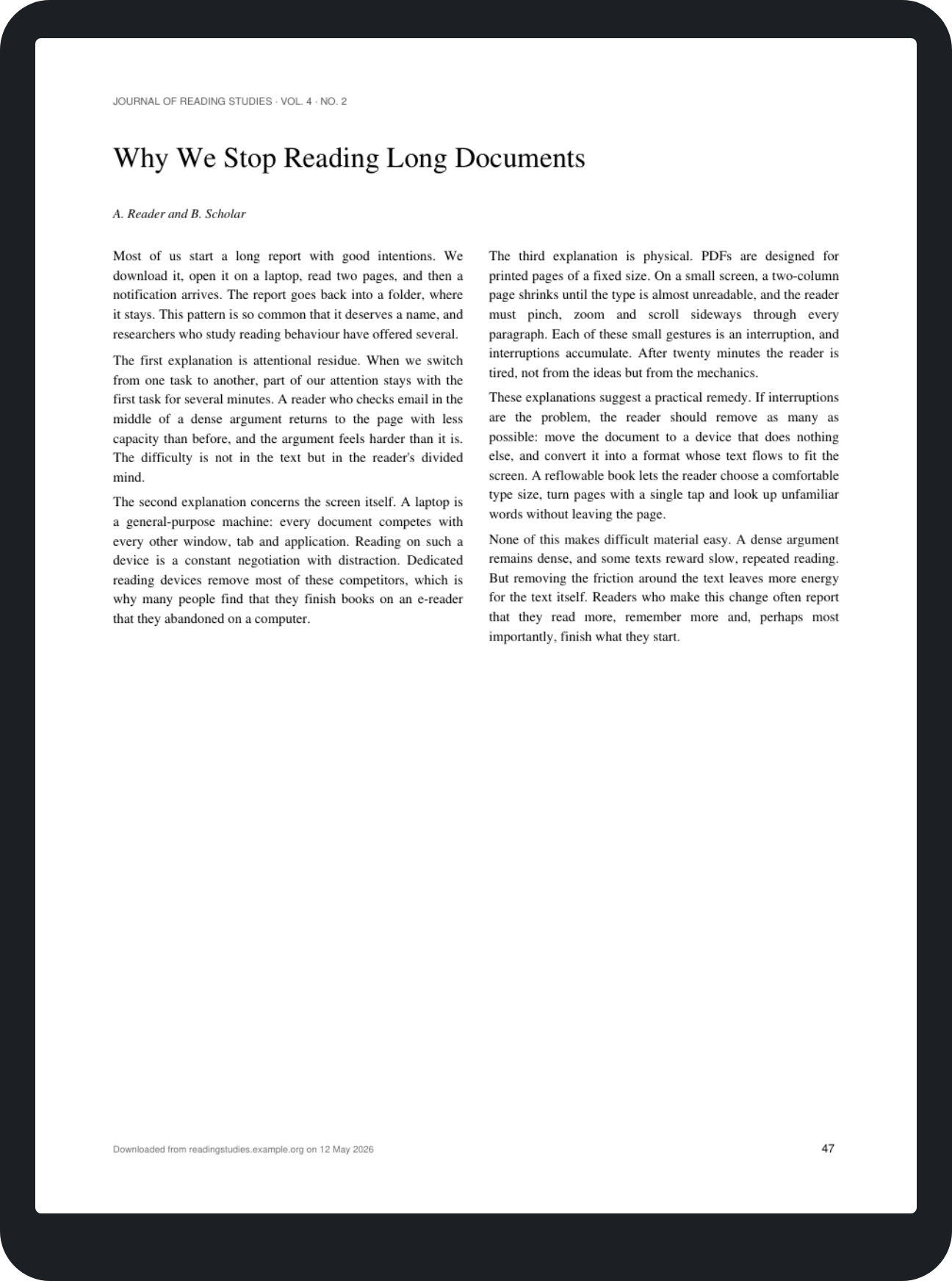
The fix is to convert the file to a reflowable EPUB before sending. See how to read a PDF on Kindle without zooming for the free and paid ways to do that.
7. Amazon is having a problem
An E999 code, or a "service under maintenance" message, isn't your fault. Amazon's advice is to wait 15 to 30 minutes and resend.
8. You're sending too much
Send to Kindle is for personal use. Codes E010 and E011 are warnings that you're sending too many emails; E012 means your access has been suspended. Stop sending and wait for Amazon's review to finish.
Email or app: pick the route that fits the file
Each route has its own rules, so if one keeps failing, try another.
| Route | Size limit | Needs approved sender | Good for |
|---|---|---|---|
| Email to @kindle.com | Under 50 MB per attachment, 25 files | Yes | Quick sends from any device |
| Send to Kindle for Web | 200 MB | No, you sign in to Amazon | Large PDFs, scans |
| Kindle app (iPhone, Android) | Not listed by Amazon | No, you sign in to Amazon | Files on your phone |
| Send to Kindle for PC or Mac | Not listed by Amazon | No, you sign in to Amazon | Files on your computer |
The web uploader is the best first fallback: nothing to install, the biggest limit, and no approved list to set up.
A worked example: a 64 MB course reader
Say you have a 300-page scanned course reader as a 64 MB PDF, and you email it from your phone's work account. Two things go wrong at once. Your work address isn't approved, so Amazon rejects the email with E014. And even after you approve the address, the attachment is over 50 MB, so the next try fails with E007.
You have three fixes:
- Use the web uploader. It's free and takes up to 200 MB, so the file arrives. But a scan is just pictures of pages, so you read it zoomed, page by page.
- Split it in two. Two 32 MB halves each go through by email. Same reading problem, though.
- Convert it first. Split it into two files under 50 MB and turn each into an EPUB, so the text flows and you choose the font size. With ReadOnKindle, a scan has to be read by the AI at 1 credit a page, so 300 pages is about 300 credits. That's far beyond the 30 free credits a month; a 300-credit pack costs $7.73 (see pricing). The free Basic version pulls out text with code, so it may not read a scan at all.
Skip the usual failures with a pre-converted EPUB
Many of the failures above come from the file itself. Sending a clean EPUB avoids most of them: it's a supported format, and its text reflows to fit any Kindle screen.
If the file is simple, free tools are the right answer. Calibre is a free desktop app that converts PDF and Word files to EPUB; it works best on single-column text. And if the file already sends fine and reads fine, plain Send to Kindle is all you need.
ReadOnKindle turns your PDF into a Kindle-ready EPUB and emails it to your Kindle for you. You add [email protected] to your approved list once, which takes about a minute, and a test book confirms the route works before you send anything real. It also handles Word files, PowerPoint slides, photos of printed pages and web articles, up to 50 MB and 400 pages per book.
- Basic pulls the text out with code. It's always free, but page numbers and running headers can stay in.
- Clean uses AI to remove page clutter, rejoin broken lines and build chapters with a contents page, without rewriting a word. It costs 1 credit a page, and every account gets 30 free credits a month.
A failed book is never charged; its credits come back automatically. Prefer to send it yourself? Download the EPUB and use the web uploader.
FAQ
Why is my Send to Kindle email not arriving?
Usually the sending address isn't on your Approved Personal Document E-mail List, or you sent to the wrong @kindle.com address. Check both inboxes and spam for Amazon's error email. If there's no error, connect the Kindle to Wi-Fi and sync.
What is the Send to Kindle file size limit?
By email, each attachment must be under 50 MB before compression, with up to 25 attachments per email. Send to Kindle for Web takes files up to 200 MB.
Why won't my MOBI file send to Kindle?
Amazon stopped accepting MOBI and AZW files by email in 2022. Convert the book to EPUB, which Send to Kindle supports, and send that instead.
Why does my PDF look tiny on my Kindle?
A PDF keeps its printed page layout, so the whole page is shrunk to fit the screen and you can't resize the text. Converting it to EPUB lets the text reflow. Our EPUB vs PDF on Kindle guide explains the trade-off.
Can I send a password-protected PDF to Kindle?
No. Send to Kindle can't process secured files and returns an E005 error. Remove the password and security settings first, if you have the right to.
Your next step
Work down the checklist, starting with Amazon's error email. If your file arrives but isn't readable, or you'd rather set up delivery once and stop guessing, convert your file and send it to your Kindle.