How to read a PDF on a Kindle Paperwhite (without squinting)
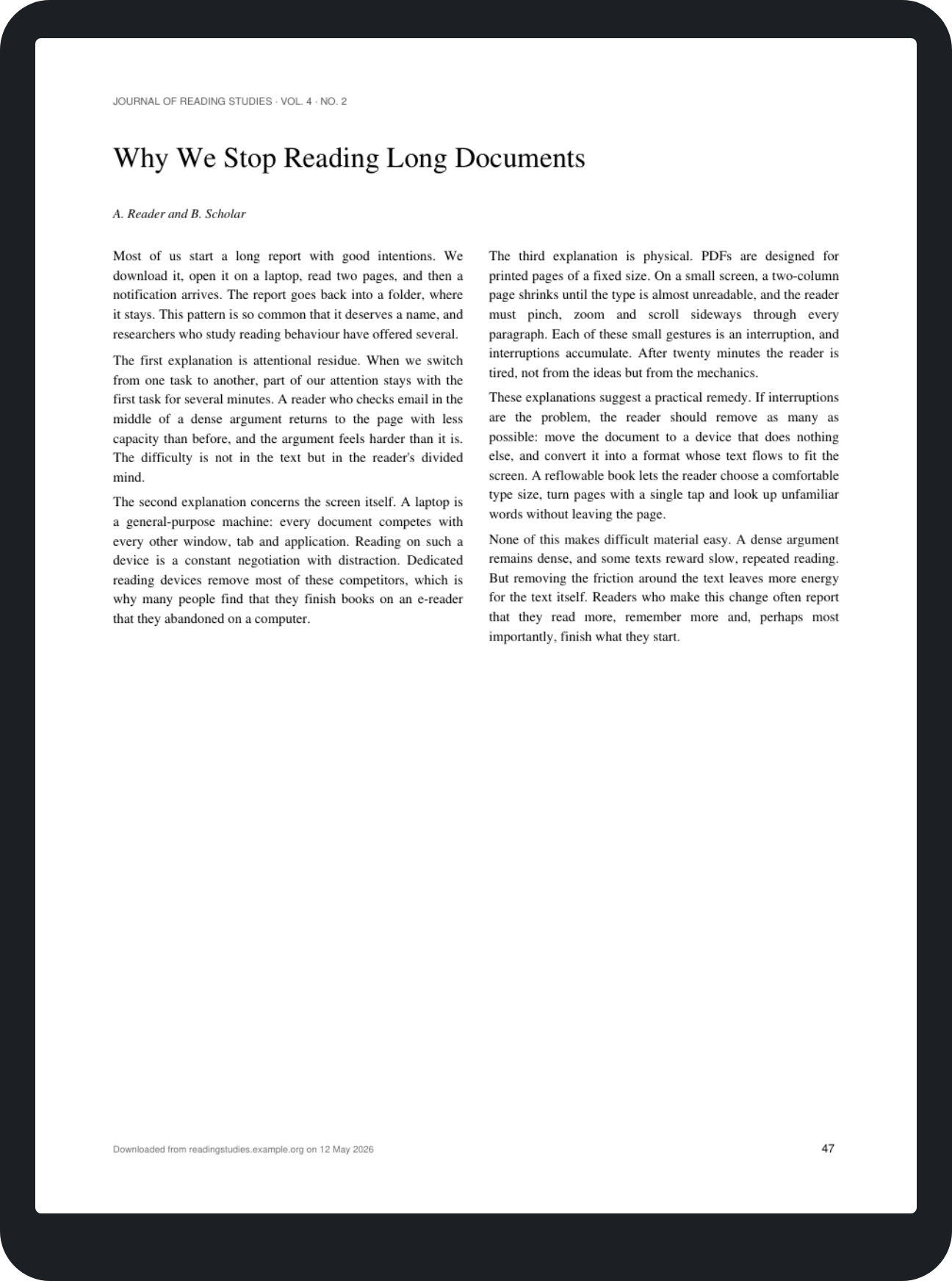
A Kindle Paperwhite opens PDFs, but it shows each printed page shrunk to fit a screen of about 7 inches, so the text is small and you can't make it bigger. To read a PDF comfortably on a Paperwhite, convert it into a reflowable Kindle book (an EPUB) and email that to your Paperwhite's @kindle.com address. The text then flows to fit the screen, and you pick the font and size like in any Kindle book.
Why PDFs look cramped on a Paperwhite
A PDF is a fixed page. Every line sits where it was placed on a Letter or A4 sheet, about 8.5 by 11 inches. Your Paperwhite has to fit that whole sheet onto its screen. Amazon says the current Paperwhite has the largest display of any Paperwhite at 7 inches, and older models are smaller still.
So the page shrinks, and the type shrinks with it. Two things make it worse on a Paperwhite:
- The font settings don't apply. The Aa menu changes fonts in Kindle books. In a PDF there's no text to reflow, so the type stays the size it was printed, then scaled down.
- There's no pen and no big screen to fall back on. Owners of a Kindle Scribe at least get a much larger screen and can write on the page. On a Paperwhite, a PDF is just a small picture of a page.
You can pinch to zoom in on part of the page and drag to move around. That works for a quick look at a chart. For reading page after page, it means zoom, pan, pan, pan, zoom out, turn the page, and start again.
The fix: turn the PDF into a Kindle book
A Kindle book (an EPUB file) has no fixed page. The text flows to fit whatever screen it lands on. On a Paperwhite that means one clean column, at the font and size you choose in the Aa menu, with margins and line spacing you control.
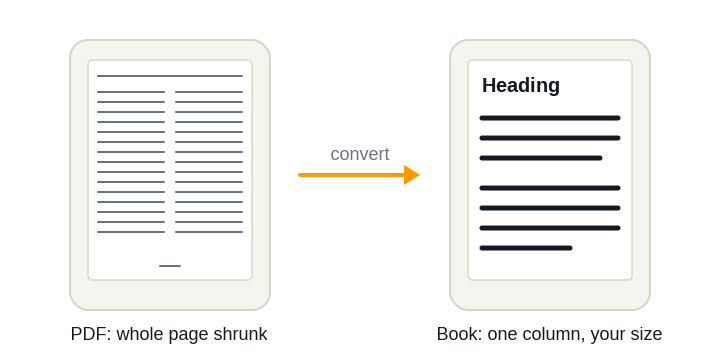
What you give up is the exact printed layout. That's fine for anything that's mostly text: reports, articles, course readings, book chapters, manuals. For forms, sheet music or layout-heavy pages, keep the PDF. Our guide to EPUB vs PDF on a Kindle goes deeper on that trade-off.
Your options for converting
| Option | Cost | What you get | Best for |
|---|---|---|---|
| Send the PDF as-is | Free | Exact page, tiny text, pinch to zoom | Forms, diagrams, quick look-ups |
| Calibre (desktop app) | Free | EPUB, quality varies a lot with the PDF | Simple single-column text |
| ReadOnKindle basic | Free | EPUB with resizable text; page numbers and headers can stay in | Plain text PDFs, no software install |
| ReadOnKindle clean | 1 credit a page (30 free a month) | Clutter removed, broken lines rejoined, chapters and contents page, figures kept | Two-column PDFs, reports, papers |
Calibre is a solid free choice if you're happy to install software and tidy up. Its own manual is honest about it: PDF is "one of the worst formats to convert from," and complex, multi-column documents are not supported. Headers and footers often end up in the text.
ReadOnKindle runs in your browser. The basic version pulls the text out with code, no AI, and is always free. The clean version uses AI to remove page numbers and repeated headers, rejoin broken lines and hyphenated words, and build chapters with a contents page, while keeping figures. It never rewrites your text: every word stays as written. If your PDF has two columns or a running header on every page, the clean version is the better fit because it does the cleanup you'd otherwise do by hand.
How to convert a PDF and email it to your Paperwhite
These steps use ReadOnKindle, which emails the finished book to your Paperwhite for you.
Step 1: Find your Paperwhite's email address
- On the Paperwhite, open Settings > Your Account and look for the address ending in @kindle.com.
- Or, on Amazon, go to Manage Your Content and Devices > Preferences > Personal Document Settings. Every Kindle on your account is listed with its own address.
If you have trouble spotting it, see how to find your Kindle email address.
Step 2: Approve the sender
- On that same Personal Document Settings page, find the Approved Personal Document E-mail List.
- Add [email protected]. Amazon only accepts emailed documents from addresses on this list.
This takes about a minute, and you only do it once. ReadOnKindle sends a test book so you know it works.
Step 3: Convert the PDF
- Sign in to ReadOnKindle with Google or an email link. There's no password.
- Upload your PDF to the PDF-to-Kindle converter. Files can be up to 50 MB and 400 pages, and scanned PDFs work too.
- Choose basic (free) or clean (1 credit a page).
- Enter your Paperwhite's @kindle.com address.
Step 4: Open it on the Paperwhite
- Make sure the Paperwhite is on Wi-Fi.
- Swipe down from the top of the screen and tap Sync.
- The book shows up in your library. Tap Aa to set the font and size.
Prefer to send it yourself? Download the EPUB instead and send it with any Send to Kindle method: email, the Send to Kindle website, or the Kindle app.
A worked example: a two-column report
Say you have an 18-page policy report as a 4 MB PDF. It has two columns, a running header with the report title on every page, and a page number at the bottom.
Sent as a PDF. It opens fine. Each page fills the Paperwhite screen, both columns side by side, the type far smaller than in a Kindle book. To read a paragraph, you zoom in, drag down one column, drag back up to the top of the next column, then zoom out to turn the page. Eighteen pages of that is a lot of dragging.
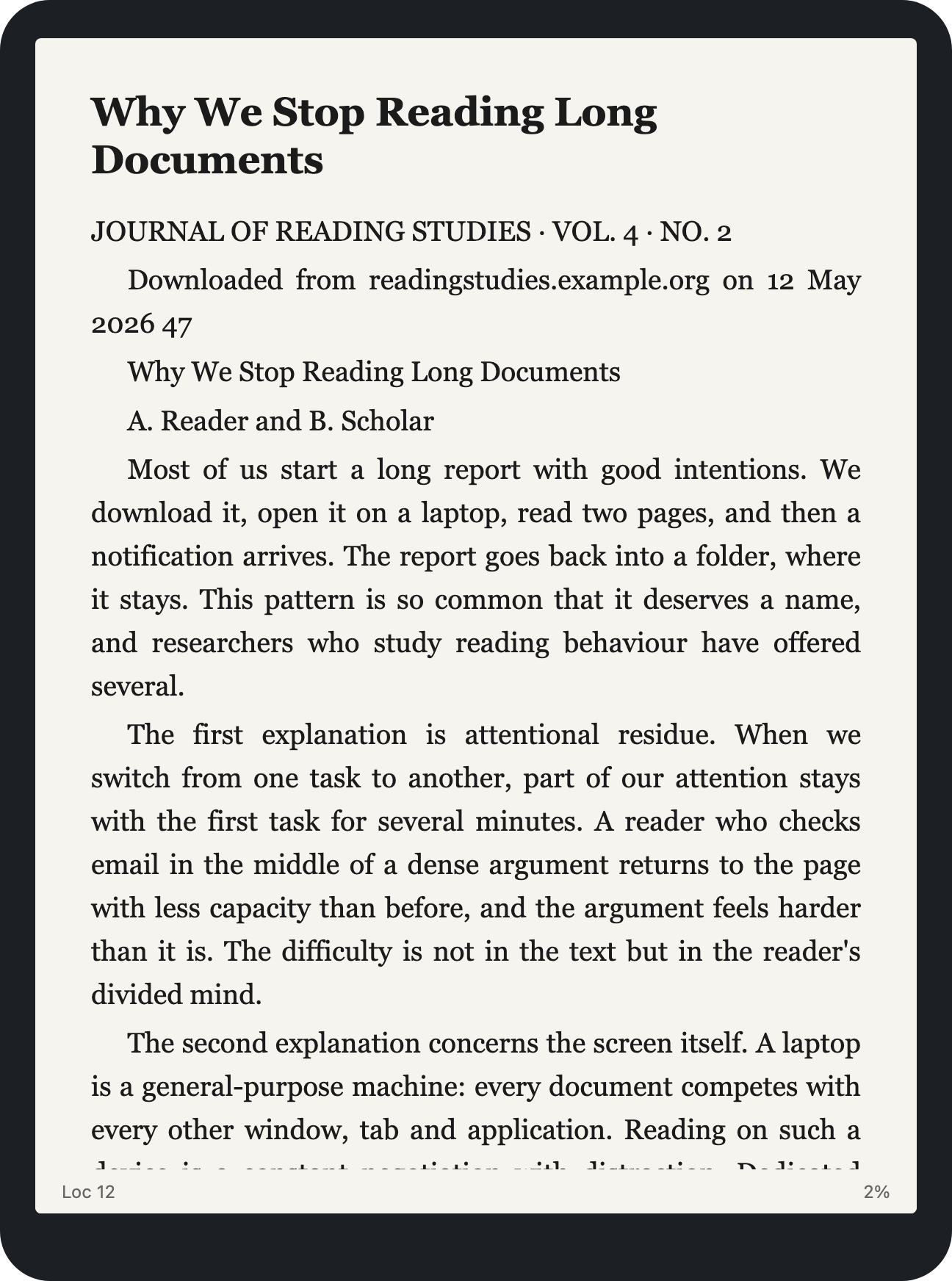
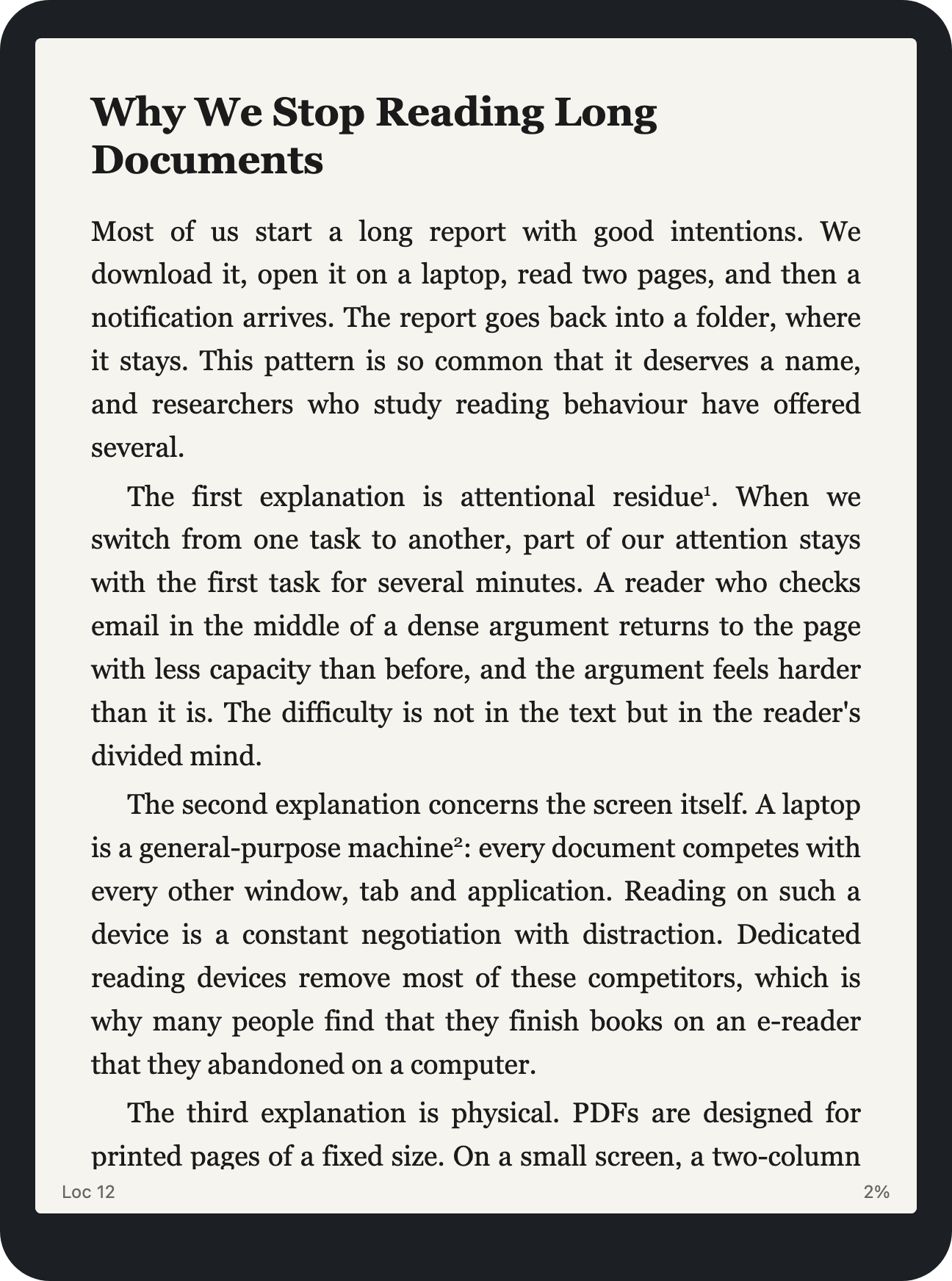
Converted with basic. Free. The text reflows to fit the screen, and you can set the size you like. But the report title and page numbers that sat at the top and bottom of each printed page now show up mid-paragraph, about 18 times.
Converted with clean. It uses 18 credits, which fits inside the 30 free credits every account gets each month. The headers and page numbers are gone, broken lines are rejoined, and the sections become chapters you can jump to from a contents page. If you turn on the optional extras, you also get footnotes explaining hard words and a two-minute summary at the end.
What to do when it doesn't work
The book never arrived on the Paperwhite
- The sender isn't approved. Check that [email protected] (or your own address, if you sent it yourself) is on the Approved Personal Document E-mail List, spelled exactly right.
- Wrong device address. If you own more than one Kindle, each has its own @kindle.com address. Make sure you used the Paperwhite's.
- It hasn't synced. Connect to Wi-Fi, swipe down and tap Sync.
If it's still missing, work through our fixes for Send to Kindle not working.
The converted text is jumbled
Columns read across instead of down, or header text lands mid-sentence. That's a text-extraction problem, common with free converters on two-column PDFs. Try the clean version, which removes page numbers and repeated headers and rejoins broken lines.
The PDF is a scan
A scanned PDF is a picture of a page, with no text inside. Basic conversion and Calibre have nothing to pull out. ReadOnKindle's clean version reads each scanned page with AI, at 1 credit a page.
The PDF is password-protected
Send to Kindle and most converters can't open locked PDFs. Remove the protection first, if you're allowed to.
FAQ
Can a Kindle Paperwhite read PDFs?
Yes. Send a PDF by email, the Send to Kindle app or USB and it opens. It shows the printed page as-is, so the text is small and the Aa font settings don't change it.
How do I make PDF text bigger on a Kindle Paperwhite?
You can pinch to zoom, but that enlarges a piece of the page and you have to drag around to read it. To get text you can actually resize, convert the PDF to an EPUB and send that instead. Then the Aa menu works as it does in any Kindle book.
What's the best format for a Paperwhite?
For anything mostly text, EPUB. Amazon's Send to Kindle accepts EPUB files, and their text reflows so you can resize it. Keep PDF for documents where the exact layout matters.
Is there a free way to convert a PDF for a Paperwhite?
Yes. Calibre is free desktop software, and ReadOnKindle's basic version is free in your browser. Both handle simple text well. For two-column PDFs or scans, ReadOnKindle's clean version costs 1 credit a page, with 30 free credits each month; see pricing for paid options.
Can I write notes on a PDF on a Paperwhite?
The Paperwhite has no pen, so there's no handwriting on the page. A converted book behaves like any other Kindle book, so you can highlight and add typed notes as you would in a novel. If writing on PDFs by hand matters to you, that's a Kindle Scribe feature.
Your next step
Find your Paperwhite's @kindle.com address, approve [email protected] once, and turn your first PDF into a Kindle book. Basic is free, and 30 clean pages a month cost nothing.